Longhorn UI · Developed by us
Show the shards of a sharded V2 volume
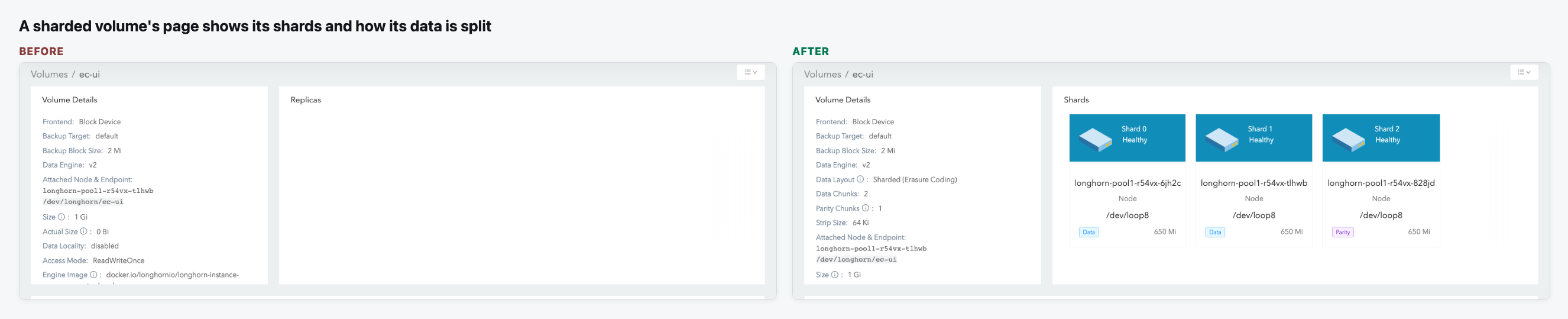
Longhorn's V2 data engine can now shard a volume. It splits the data into data and parity pieces (erasure coding) and puts each piece on a disk on a different node, so no node holds a full copy. The UI didn't know about this: a sharded volume's page showed an empty Replicas card and the list showed "0 / 1". We added a read-only view of the shards. As the Longhorn maintainers asked, sharded volumes are still set up outside the UI.
What changes for the user
- A sharded volume's page has a Shards card instead of an empty Replicas card. There is one tile per shard, with its state, node, disk, size and whether it holds Data or Parity.
- Volume Details shows how the data is split: Data Layout, Data Chunks, Parity Chunks and Strip Size. The help on Parity Chunks says how many shards can fail at the same time.
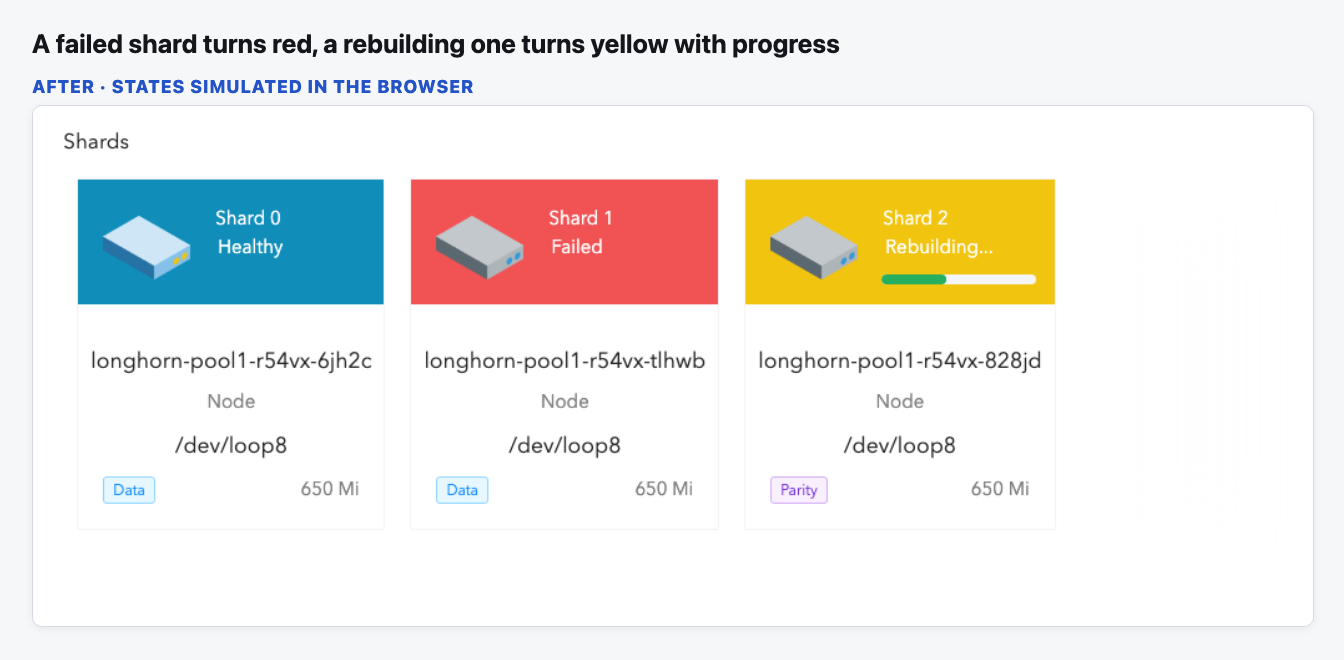
- A failed shard turns red, and hovering it shows when it failed. A replacement shard turns yellow and shows its rebuild progress.
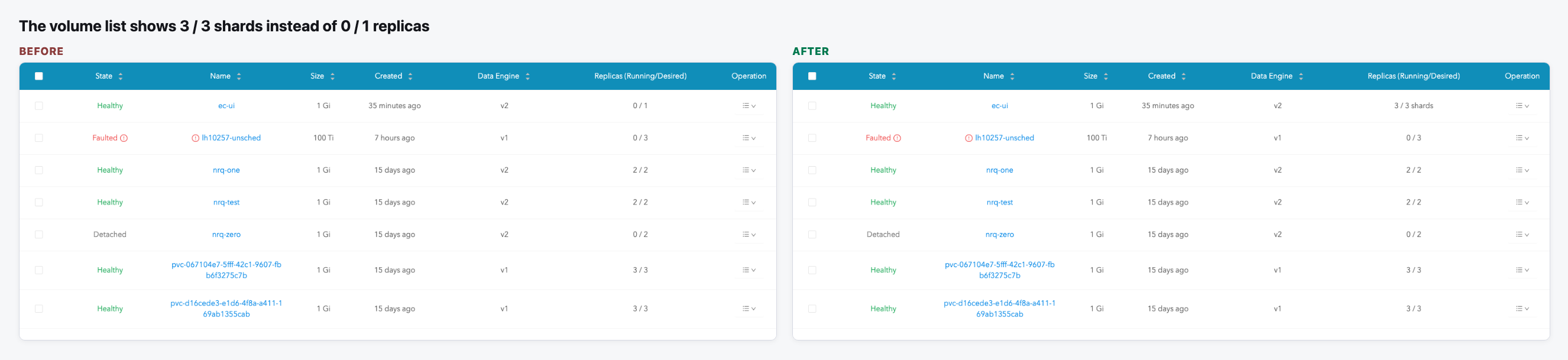
- The volume list shows "3 / 3 shards" for a sharded volume instead of "0 / 1". Replicated volumes look the same as before.
- Nothing here changes a volume. There are no new buttons or forms.
Needs a decision
- Column name: the list column is still called "Replicas (Running/Desired)", and for a sharded volume we write "shards" after the numbers. Is that enough, or should the column get a new name?
- Replica actions: a sharded volume's menu still offers replica actions such as Update Replicas Count, which don't apply to it. Should we hide them in this change or in a follow-up?
The flow
The volume page shows the shards
The empty Replicas card becomes a Shards card, and Volume Details says how the data is split.
Problems are easy to spot
The tiles use the same colours as replica tiles: blue when healthy, red when failed, yellow while rebuilding.
The volume list counts shards
In the optional Replicas column, a sharded volume shows its healthy shards out of the total.
Video (optional)
0:00 Before · 0:19 After · 0:45 Failed and rebuilding shards (simulated) · 1:00 Volume list
Notes
- The issue is assigned to another Longhorn UI developer, so we haven't opened a PR yet.
- Not covered yet: the Node page's disk replica count leaves out shards, and shard events don't show in the volume's event list.
- Creating a sharded volume or changing its layout stays outside the UI. The Longhorn maintainers asked for display only, for now.